HOURNEXA USER GUIDE · 09 / 10
Make the defaults fit your work
Use the settings menu on the home screen to change recording defaults, document options and extra copies of your exports.
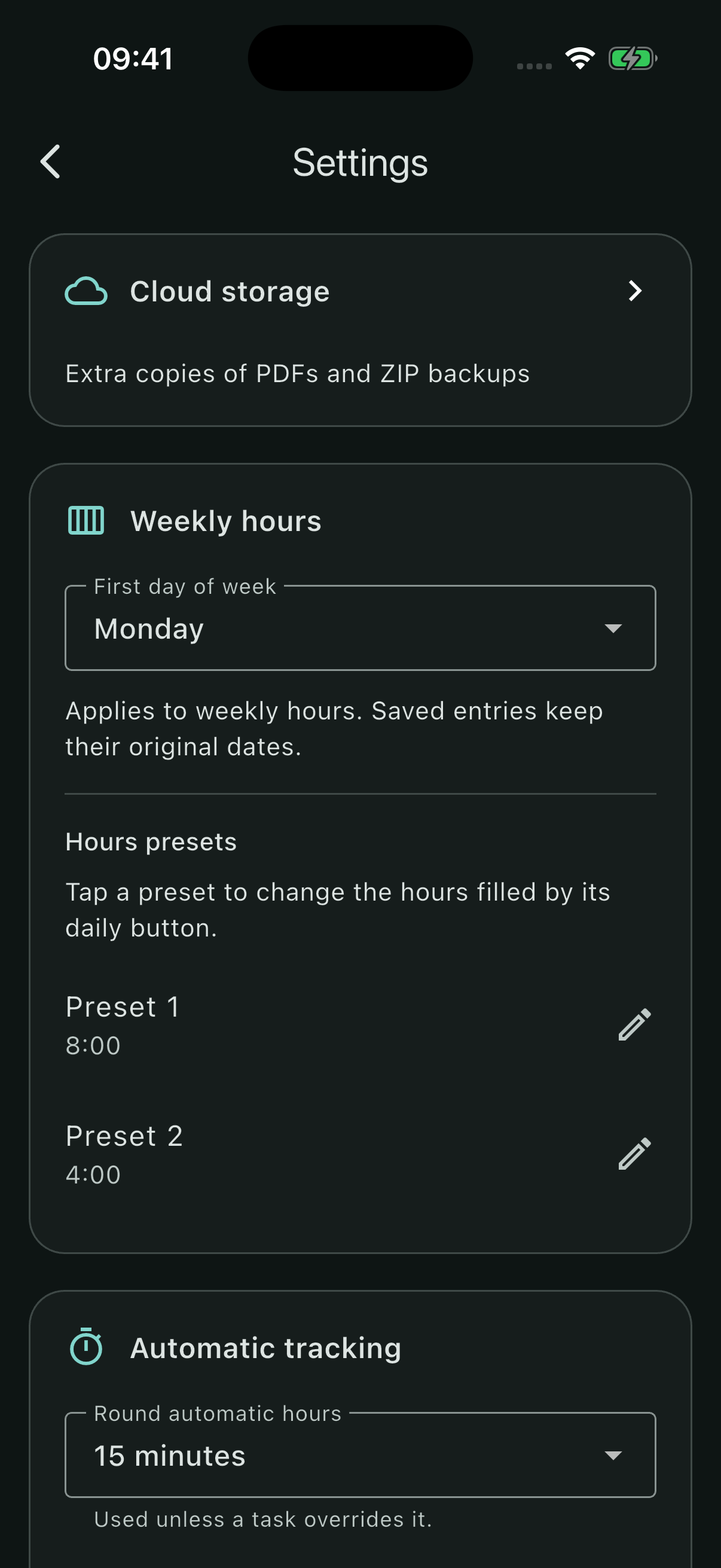
Weekly hours and rounding
First day of week changes how the weekly screen groups dates. Saved entries keep their original dates.
Hours presets supplies the two quick-entry buttons beside each day. Select a preset to edit its value, then save it. Presets fill the input; remember to save the week after using them.
Round automatic hours chooses an interval from 1, 5, 10, 15, 30 or 60 minutes. Always round down chooses rounding down instead of the nearest interval.
A task with Override hours rounding uses its own setting. Manual decimal entry is converted to whole minutes separately from these automatic-tracking rules.
Dates, mileage and work locations
| Setting | What to check |
|---|---|
| Date format | Choose how dates are displayed. It does not move the entries to different dates. |
| Mileage unit | Used for driving distances and the mileage rate. Changing this unit keeps the entered numbers unchanged; it does not convert them. Recheck distances and rate when switching units. |
| Mileage rate | Your price per mileage unit. Enter the rate appropriate to your work or agreement. |
| Distance unit | Controls work-location distance display, separately from mileage claims. |
| Maximum radius | Controls the upper limit available when choosing a work-location radius. It is not your mileage distance. |
Invoice settings
The Invoices section holds company and payment details, the payment term and Invoice numbering. Enter the start number without leading zeros; Number of digits adds zero padding to the final number.
After the first completed invoice, the start number is locked. The numbering screen’s Danger zone can clear all completed invoices and unlock it. Back up first; drafts remain. Read the invoice guide and its two-confirmation reset workflow before using this action.
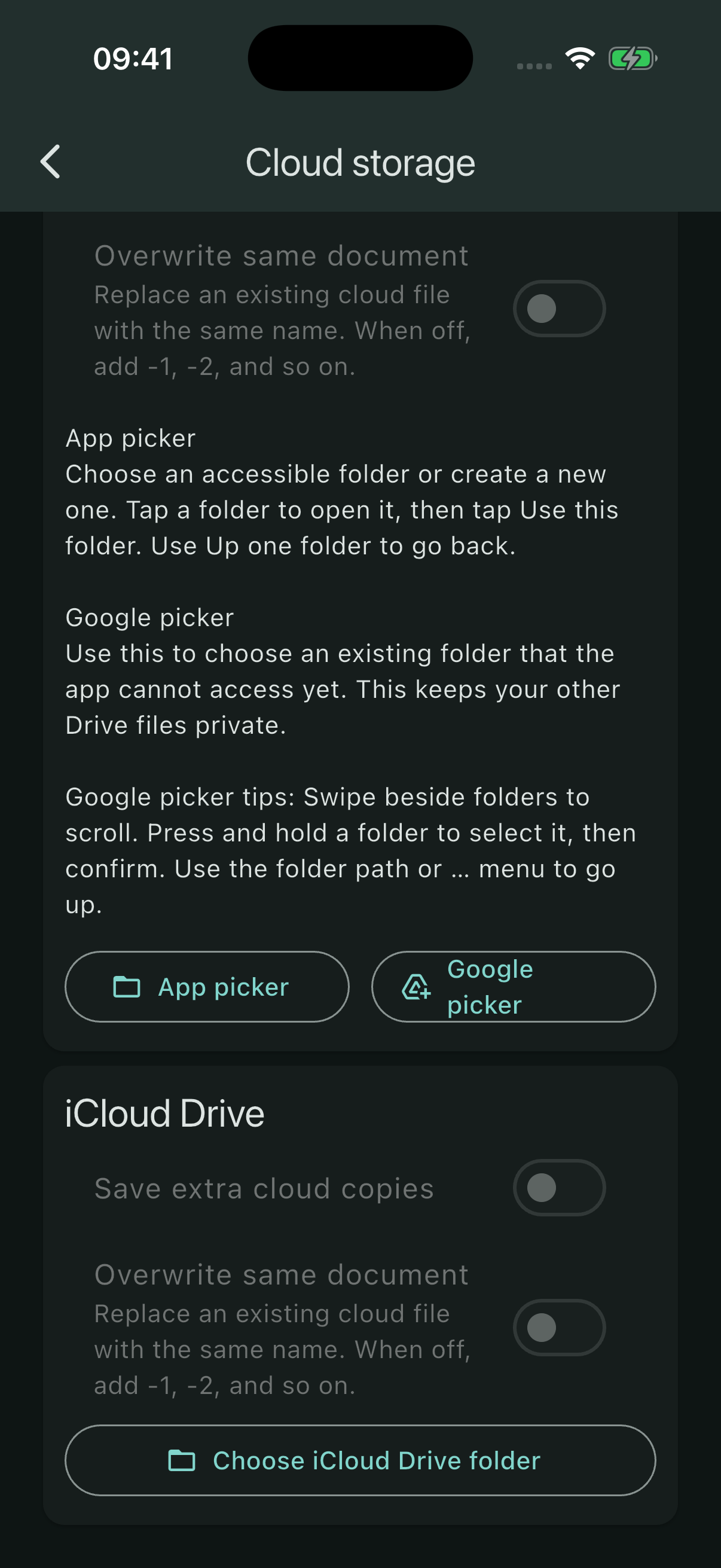
Save extra cloud copies
Open Cloud storage and choose a destination folder in an available provider. Then enable Save extra cloud copies for that provider. You can use the available providers independently.
- App picker: browse an accessible folder, or create a new one, and choose Use this folder.
- Google picker: select an existing folder that the app does not yet have access to.
- Overwrite same document: replace a cloud file with the same name. When off, the app adds a number such as -1 or -2 instead.
Extra copies are made when you manually create a PDF or ZIP. Creating a report can therefore write a cloud copy even before you share it. Sharing remains available.
Customise document wording
From the report workflow, open Manage translations. Original languages are read-only; add or copy a language to create editable labels. Save the changes and choose that language when generating your next report.
These settings change report headings and shared labels, not the interface language or your client and task names.
Pro and privacy choices
Manage Pro offers an optional subscription to remove advertising. Clients, projects, tasks, hours, reports, backup and both map providers do not require Pro.
The price is shown before subscribing. Use your device’s subscription management to manage or cancel a subscription. Restore purchases is for recognising a previous eligible purchase; it does not restore business records from a ZIP.
Account linking for shared Pro access is optional and separate from time recording. Use Privacy choices in the settings menu for the advertising privacy options available to you. For details about data handling, read the privacy policy.