HOURNEXA USER GUIDE · 02 / 10
Give every task a home
A small amount of setup makes it easier to enter hours, choose the right work location and produce reports for the right client.
1. Add your client
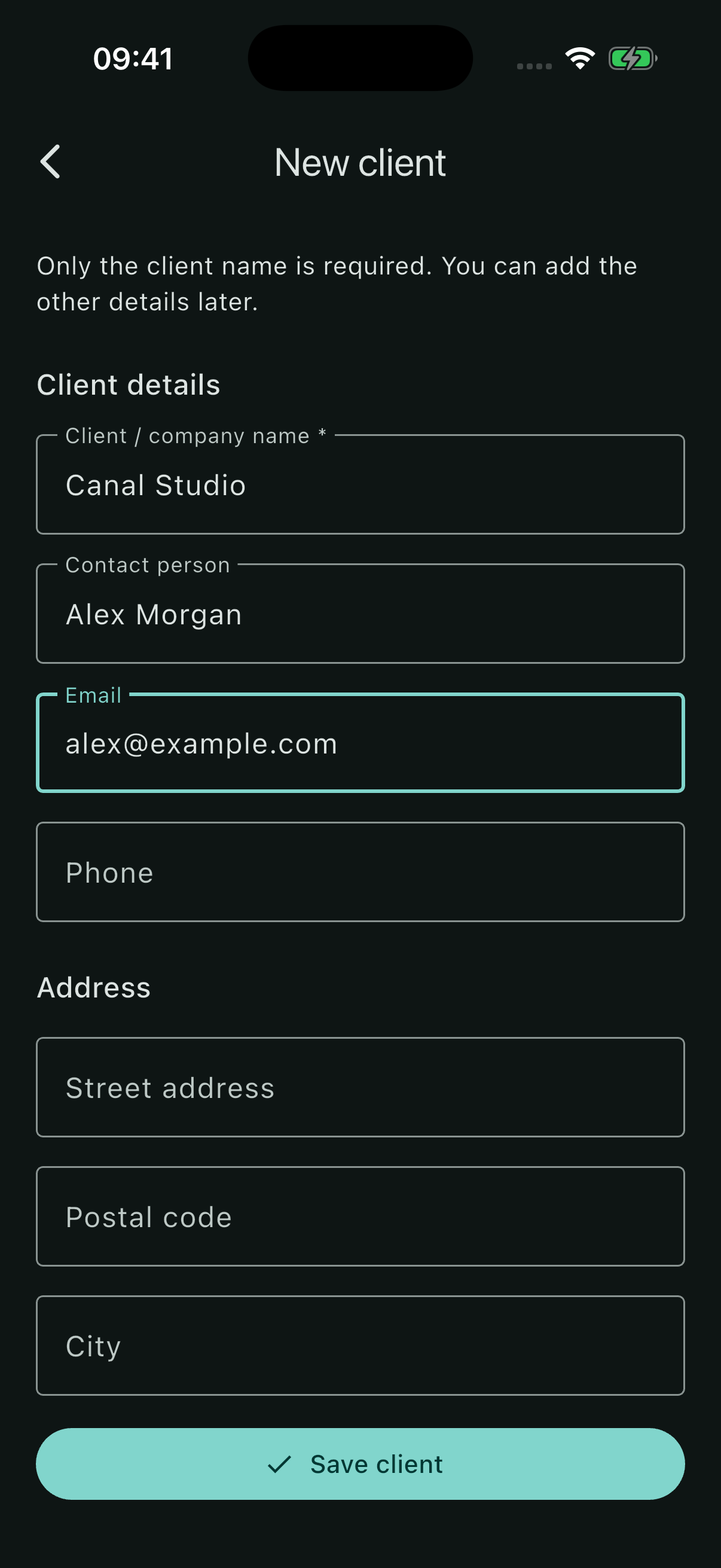
From the home screen, open Clients → Add client.
- Enter the Client / company name. This is the only required client field.
- Add a contact person, email, phone or address if useful. These details help keep your work organised.
- Use the business fields for registration details and notes when you need them.
- Select Save client.
In the example, the client is Canal Studio and the contact person is Alex Morgan. Use the search field in Clients to find an existing record.
2. Create a project
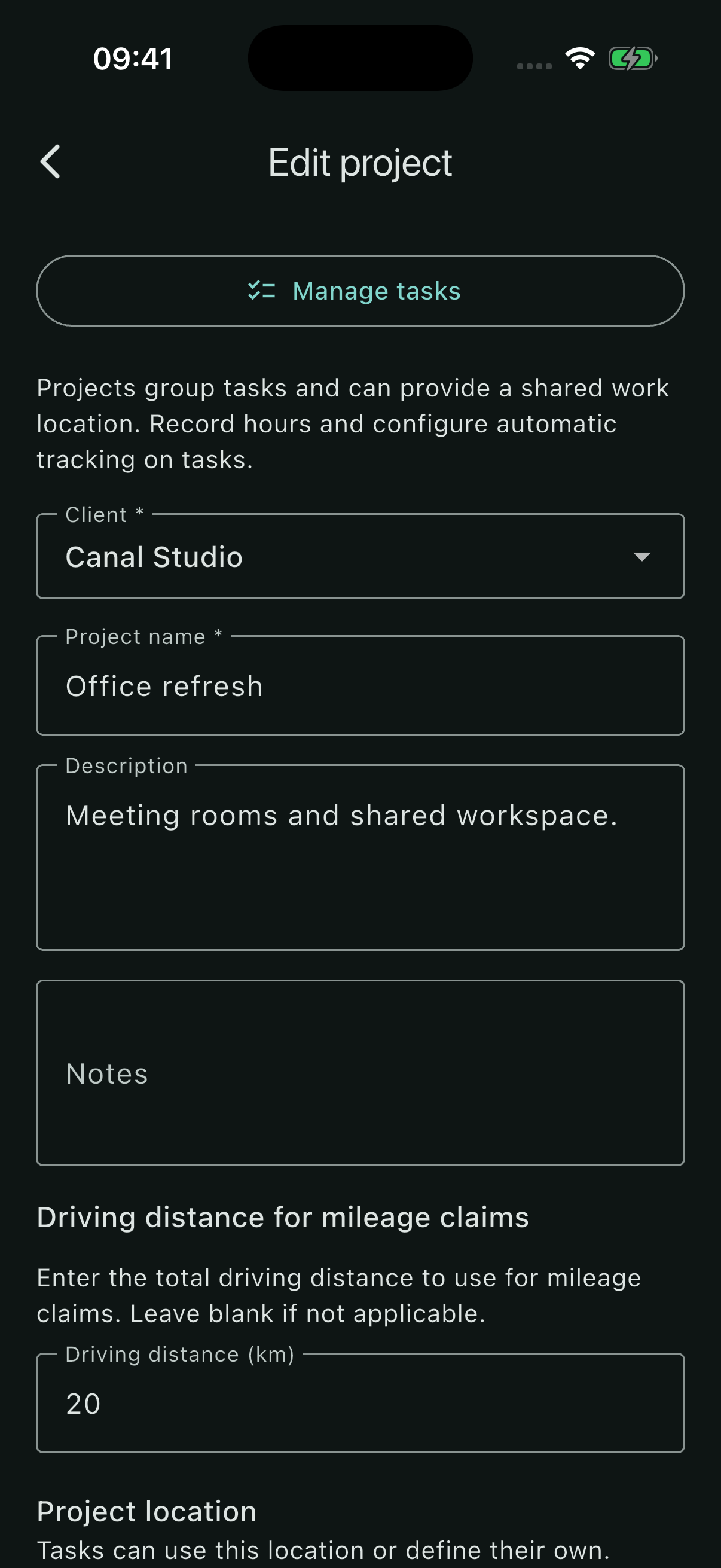
Open Projects → Add project, choose the client and enter a project name. Select Save project.
Office refresh belongs to Canal Studio. Its tasks will share a work location and a driving distance, so those details belong on the project.
- Description and Notes: keep context about the job.
- Driving distance: enter the total distance to use for a mileage claim, including the return journey if applicable. It is not calculated from the map.
- Choose on map: place a work location that tasks can inherit.
Use Manage tasks from an existing project to work with its tasks.
3. Add tasks you can report on
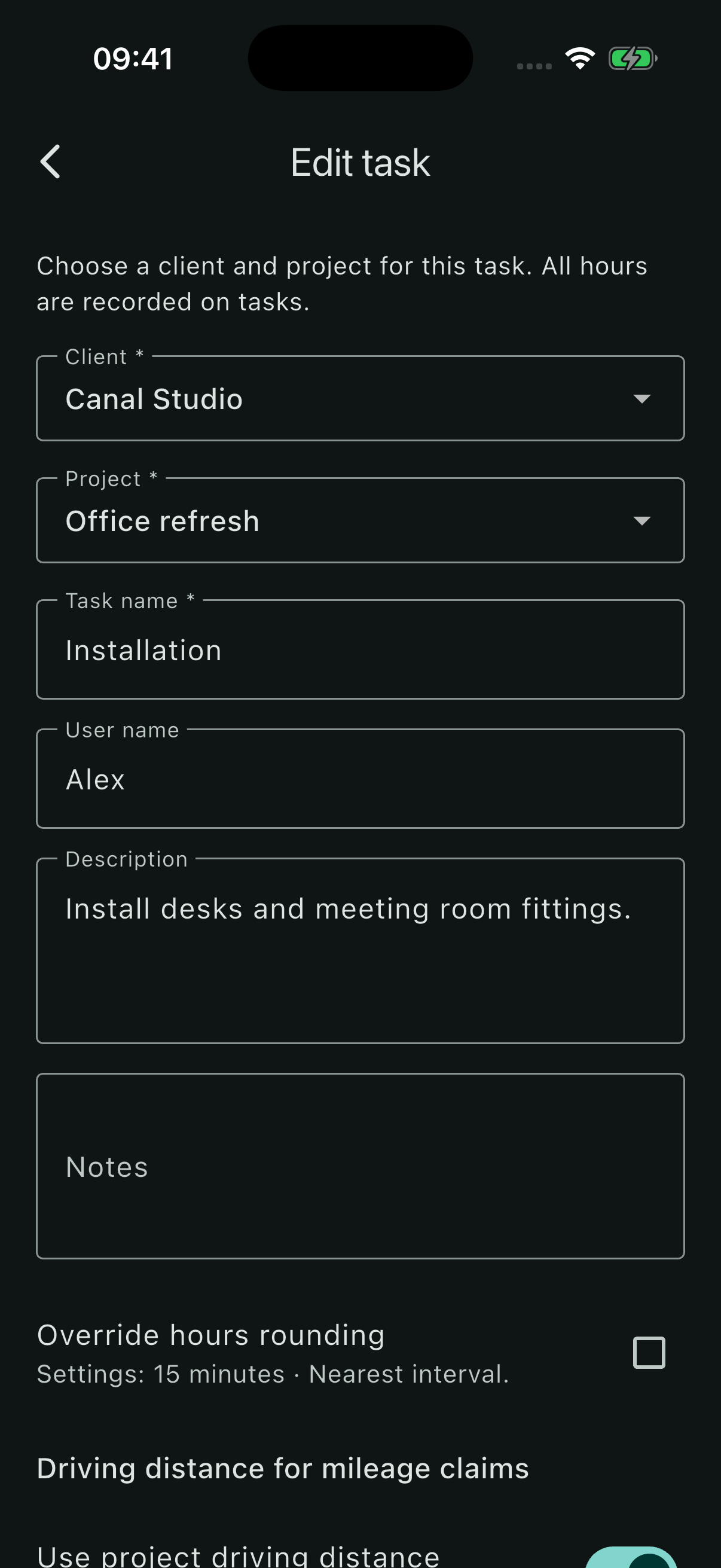
Open Tasks → Add task. Select the client and project, name the task and choose Save task.
Use a task name that makes sense on a timesheet: Installation, Planning or Site survey. The optional User name identifies who did the work in the detailed report.
- Use project location: follow the project’s work location, including later changes.
- Use project driving distance: inherit the project’s mileage distance.
- Override hours rounding: give this task different automatic rounding from the general setting.
Turn off an inheritance switch if a task needs its own value. Automatic tracking must be enabled separately on each task.
Edit without losing your place
Open an existing client, project or task to change its details. New records have an explicit Save button; existing editors save changes as you work. If the app asks what to do with unsaved changes when you leave, choose Save changes, Discard or Cancel deliberately.
Use the client and project filters to narrow long lists. If a selector has several possible values, choose one before entering hours.