HOURNEXA USER GUIDE · 04 / 10
Let arrivals start the record
Give a task a location, allow background location access and review the hours after you leave. Each task has its own tracking switch.
Choose a useful work location
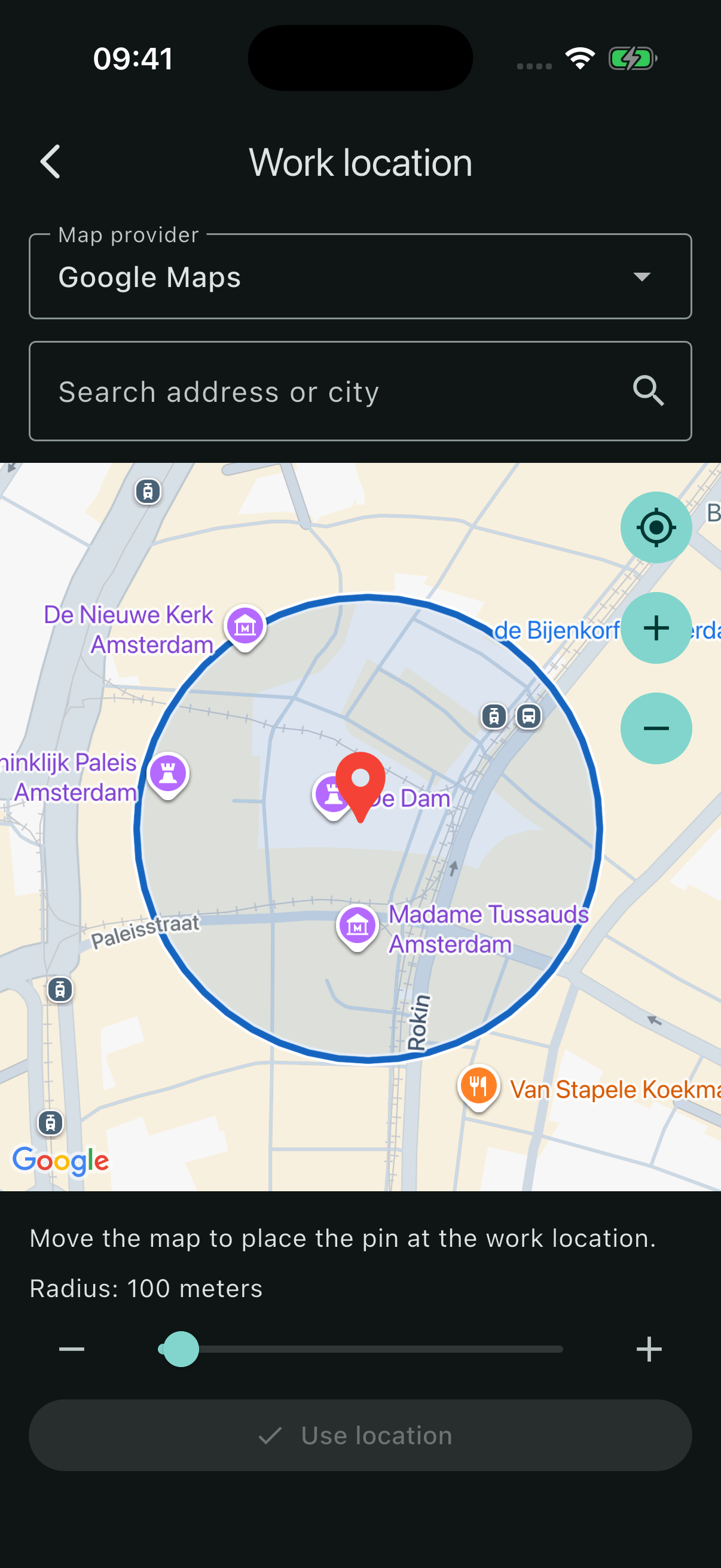
- Open a project and select Choose on map. For a task-specific location, open the task and turn off Use project location.
- Search for an address or city, use the current-location button, or move the map to position the pin.
- Choose the Radius around the work location, then select Use location.
You can use either OpenStreetMap or Google Maps. Both are available without Pro.
When you reopen a saved location, Use location becomes available after you change the pin or radius.
The circle defines an arrival area, not a route or driving distance. A radius of at least 100 metres is recommended in the app; make it large enough to cover the place where you actually work.
Enable tracking for the task
- Open the task and check its work location.
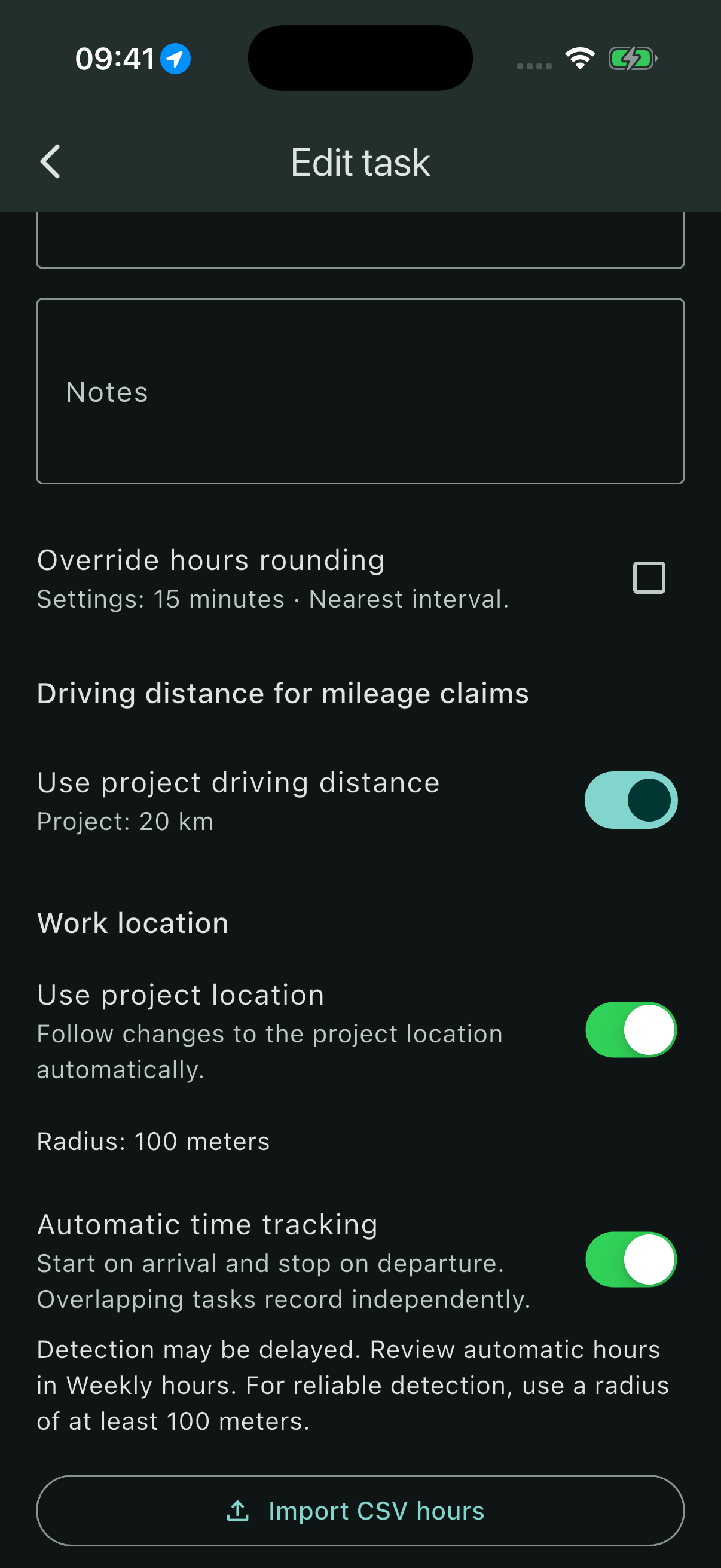
- Turn on Automatic time tracking.
- Read the explanation and select Continue.
- Allow location access even when the app is not in use, and enable precise location in the device’s permission settings.
Granting location permission does not enable every task. The switch on each task decides whether that task participates.
If the task inherits its location, changing the project’s location changes the monitored area for that task as well.
Know what is being recorded
The home screen shows tracking status. Not recording means no registration is running; it may be waiting for an arrival. A running task shows Recording since with a start time.
When the device reports departure, the registration is completed and its hours become available for review. Detection can be delayed: the displayed times are not a guarantee of the exact instant you cross the circle.
Stop, switch off and review
Use Stop current registration on a running task when you need to end the current visit manually. Recording resumes on a later arrival. Turn off Automatic time tracking when the task should no longer track arrivals.
Review completed hours in Weekly hours or the review list. Check the duration, correct it if needed and confirm it before locking the week.
Automatic totals use the rounding setting for the task, or the general setting when there is no override. With a 15-minute interval, a raw 1:08 becomes 1:15 using nearest-interval rounding, or 1:00 when always rounding down.
If an arrival is missed
Check that location services are on, precise background access is allowed, the task’s tracking switch is enabled and the pin and radius cover your workplace. If your device restricts the app’s background activity, check those settings too.
Make a short arrival-and-departure test before relying on a new work location. Review the result and enter missing hours manually when necessary. HourNexa records visits to your selected locations; it does not keep a continuous route history.