HOURNEXA USER GUIDE · 07 / 10
Keep a copy and restore only what you need
A ZIP backup captures your work records. Choose a full replacement or merge selected clients, projects and tasks into the records already on the device.
Create a backup
- Open the settings menu on the home screen and choose Backup & Restore.
- Select Export ZIP.
- Choose a local folder or another destination in the share sheet, and complete the save.
- Check that the ZIP exists in that destination.
The backup includes clients, projects, tasks, hours, settings, templates, documents (including draft and completed invoices) and tracking history. Exporting does not remove anything from the app.
Keep a copy outside the app’s own storage. A PDF or CSV report is not a replacement for this backup: it does not contain everything needed to restore the app.
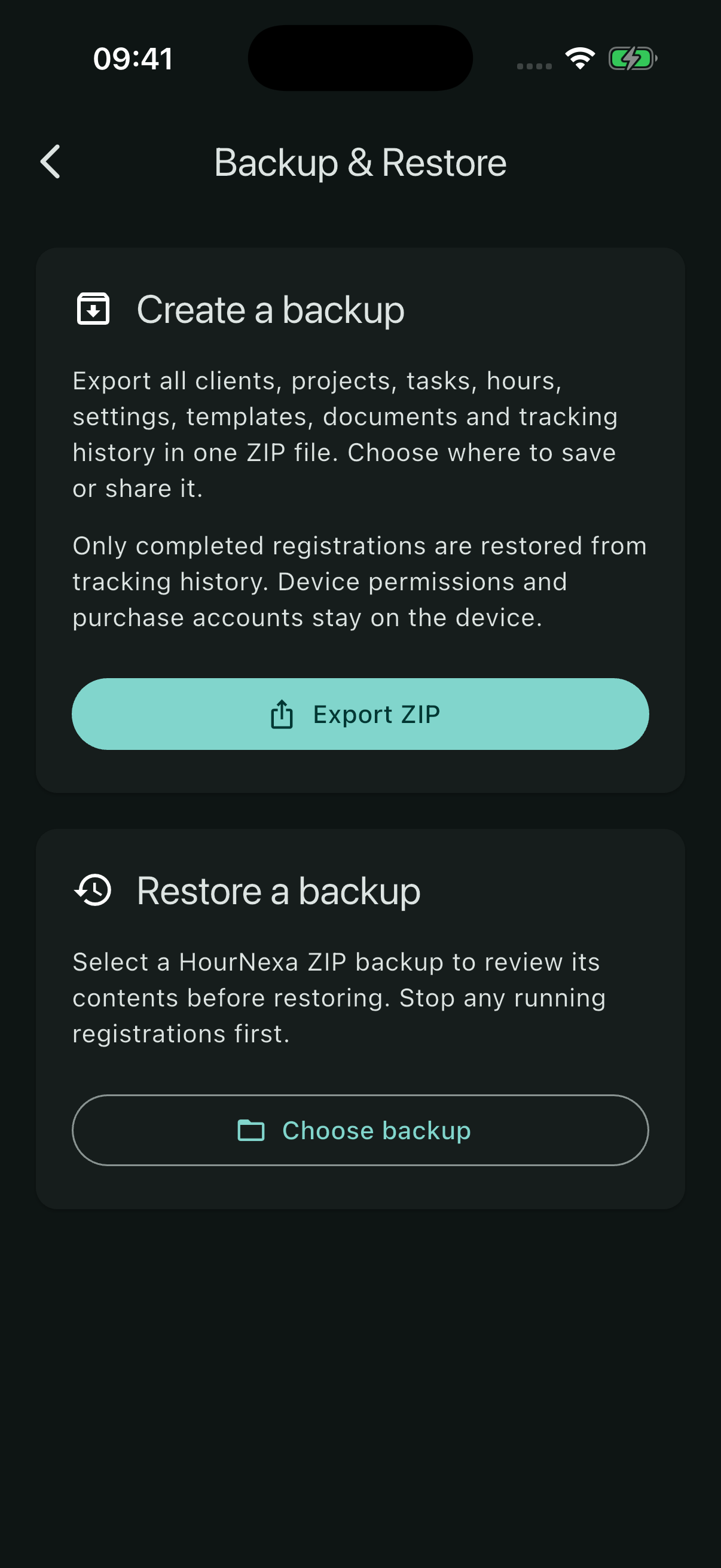
Choose and inspect the ZIP
Select Choose backup, find the HourNexa ZIP and check the summary. Confirm that its date and counts match the copy you intend to use. Selecting a file does not restore it yet.
Stop all running registrations before either kind of restore. The app blocks restore while a registration is active. Only completed registrations from the backup are restored; an old running session is not resumed.
| Choice | What happens |
|---|---|
| Restore backup | Replaces clients, projects, tasks, hours, settings and documents with the backup. Existing completed tracking history is retained. |
| Partial restore | Merges the selected records. Other records, settings and unselected documents stay. You choose whether backup hours and completed tracking history are included. |
Restore selected work
- Choose the ZIP and select Partial restore.
- Tick a client to include its projects and tasks, a project to include its tasks, or individual tasks. You can also select individual Completed invoices, independently of clients and tasks.
- Decide whether to enable Include all associated hours. It starts off.
- Select Continue and read the confirmation before choosing Restore.
Missing parents are included automatically. Restoring Installation can bring back its missing Office refresh project and Canal Studio client. An existing parent stays as it is unless you select that parent too.
Selected completed invoices include their saved PDFs. Matching invoice IDs are replaced. If a different completed invoice uses the same filename, the existing file gets a numbered suffix and both are kept. Drafts and invoice numbering stay unchanged; check Next invoice before completing new invoices. Use a full restore to restore drafts and the numbering from the backup.
The restored task includes its tracking settings. Check those settings afterwards, especially when restoring a task that used automatic tracking.
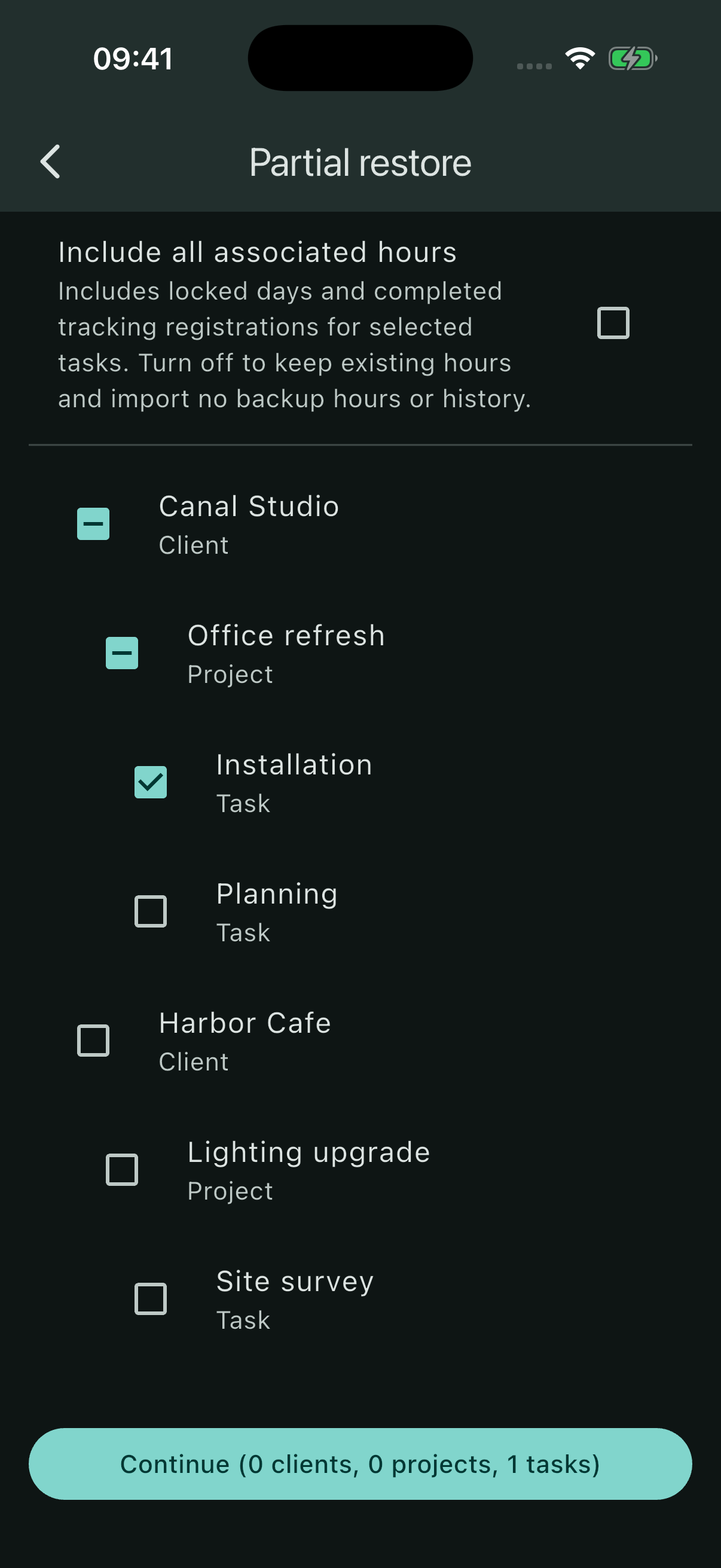
What happens to hours already on a task?
| Hours option | Result for a selected task |
|---|---|
| Off | Existing hours remain. No backup hours or completed backup tracking history are imported. A restored task with no existing hours starts without hours. |
| On | Associated backup hours and completed registrations are included. A backup entry replaces the current entry for the same task and date, including a locked date. Current dates not present in the backup remain. |
Restore the whole backup
Export a copy of the current data first if you may need it again. Choose the source ZIP, select Restore backup and confirm the replacement.
Afterwards, check a familiar client and task, a week’s hours and your settings. Device permissions and purchase accounts are not transferred by the ZIP. Grant the required location access on a new device before relying on automatic tracking.
Understand extra cloud copies
Under Settings → Cloud storage, choose a folder in an available provider and enable Save extra cloud copies. Each PDF or ZIP you create manually can then be copied to the enabled folder or folders.
This does not continuously synchronise clients, tasks or hours between devices. You still need to create a backup and restore it when moving your records. See cloud settings and file naming.